
01Why test on a real board
The Simulator gets you very far, but some things only show up on the real thing: how the colours look on a table in daylight, how long a move really takes over Bluetooth, whether players understand the screen while their hands are busy with pieces.
Probar en el teléfono (test on phone) installs your game, as it is right now, on your own phone, inside the real AtlasHub app, so you can play it on a real Atlas 64. No store, no review.
02What you need
- An Atlas Developer account, enabled as explained in guide 2.
- AtlasHub on your phone, signed in with that same account.
- Your PC and your phone on the same Wi-Fi network.
- An Atlas 64, switched on and connected to AtlasHub.
- A game that passes Validar Proyecto.
03Step by step
-
Get your phone’s code
In AtlasHub: Configuración → Configuración de desarrollador → Modo desarrollador (Settings → Developer settings → Developer mode). Under Código de este teléfono (this phone’s code) there’s a code like
8040-8791-BE9A. Tap Copiar or keep it in view.Screenshot pendingAtlasHub · Modo desarrollador, with the phone code and the pack address field -
Open “Probar en el teléfono” in Studio
In the Panel de Control tab, press Probar en el teléfono. The first time, sign in with your creator account (email and password) and press Iniciar sesión (sign in). Leave the Backend field as it is.
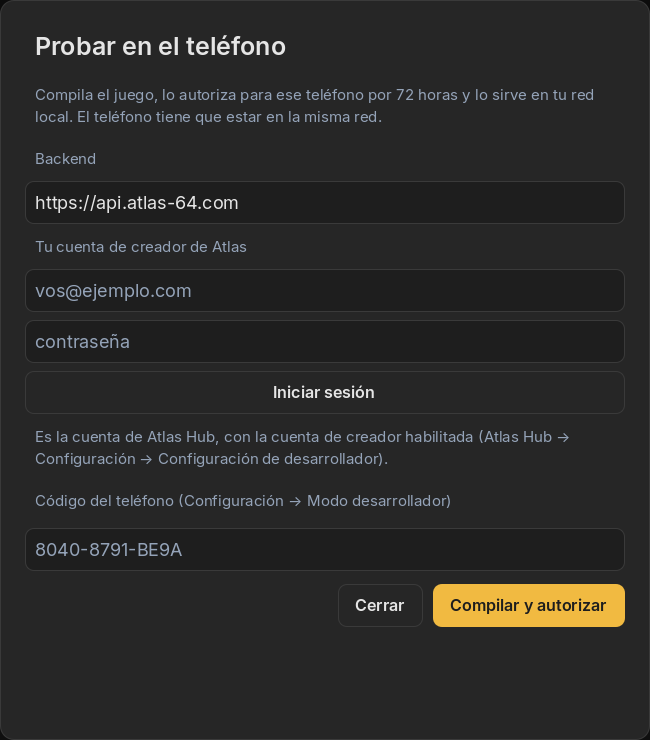
The dialog explains it in one line: build, authorize for that phone for 72 hours, serve on your local network. -
Enter the code and build
Type your phone’s code in Código del teléfono and press Compilar y autorizar (build and authorize). Studio packs your game, asks the Atlas server to authorize that exact build for that phone, and then shows an address like
http://192.168.0.12:8080/paint-the-board.pck. -
Install it from AtlasHub
Back in Modo desarrollador, type that address in Dirección del pack en tu PC (pack address on your PC) and tap Instalar pack (install pack). AtlasHub downloads it from your PC, checks the authorization and installs it. It remembers the last address you used.
-
Play
Your game appears in your library with a Desarrollo (development) badge, and a DEV mark in its header while you play. The card also tells you how long the install has left, like “vence en 2 d 5 h” (expires in 2 d 5 h).
Every change is a new build, and every build needs its own authorization. Press Compilar y autorizar again and reinstall from AtlasHub. The address usually stays the same.
04What a test install is, and what it isn’t
A test install is a tool for you, the creator. It’s deliberately limited so it can’t become a back door to the store.
- It lasts 72 hours. Then it expires and AtlasHub removes it on its own. To keep testing, build and authorize again.
- It only works on your phone. The authorization is tied to that phone’s code, your account and that exact build. It can’t be passed to another phone or another person.
- It’s not for sharing. The creator agreement asks you not to share or distribute test builds. To put your game in other people’s hands, publish it (guide 6).
- It lives only temporarily on your phone. It doesn’t appear in the store or in anyone else’s library.
- Up to 50 active authorizations per account, and packs up to 256 MB.
- Piece memory doesn’t work on the real board yet. If your game reads or writes the memory of pieces on Atlas Core, it has to cope with that being unavailable.
05Make the most of it
Your phone, your board, your table: this is the moment to watch people play. You can hand the phone and the pieces to friends sitting at your table; what you can’t do is send them the game.
- Don’t explain the rules first. If the screen and the board can’t explain them, that’s your next change.
- Watch the hands, not the screen. Hesitation before placing a piece usually means the board isn’t saying clearly enough what’s allowed.
- Note what surprised you, then turn each note into one message for the agent back in Studio.
- Try it in a bright room and with the board dimmed from AtlasHub.
06If something goes wrong
| You see | Try this |
|---|---|
| “Revisá que la PC y el teléfono estén en la misma red…” | The phone can’t reach your PC. Check both are on the same Wi-Fi (not the phone on mobile data), and avoid guest networks, which often keep devices apart. If Windows asked whether to allow Atlas Studio on the network, allow it on private networks. |
| “La autorización venció. Volvé a autorizar el pack desde el Studio.” | The 72 hours are up, or you installed an older build. Press Compilar y autorizar again. |
| Studio says your account isn’t a creator account | Enable it in AtlasHub (guide 2) and sign in to Studio again. |
| The game installs but doesn’t start | Check that your Atlas 64 is connected and that you have at least the minimum number of modules the game asks for. |
| The download stops halfway | Keep Studio open, with the dialog showing the address, until AtlasHub finishes installing: Studio is the one serving the file. |